
Download Screen Capturer Lite – Free Screenshot and Video Recording Tool
Overview
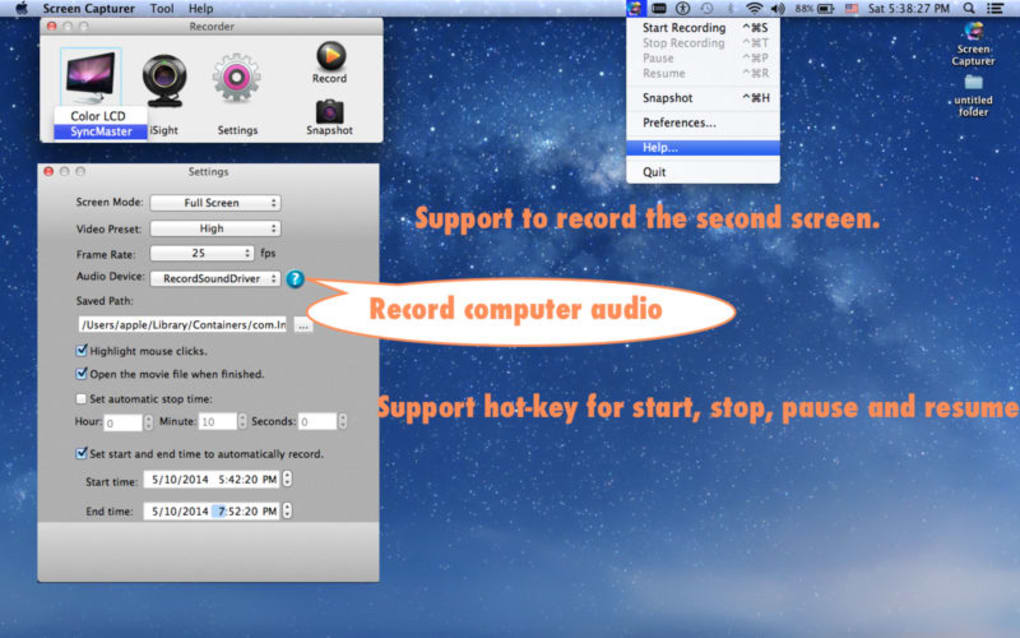
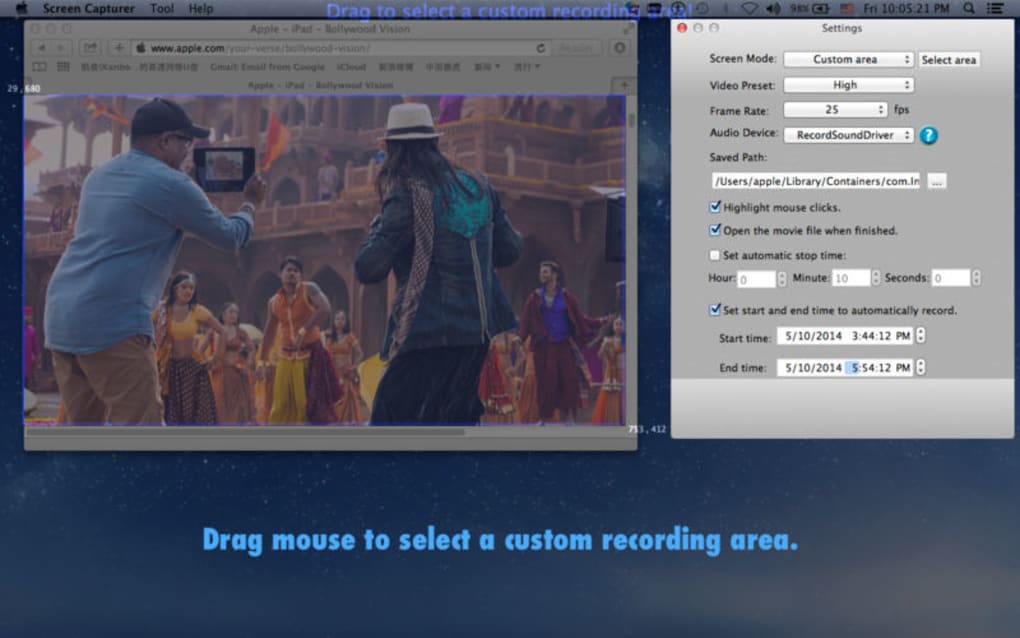
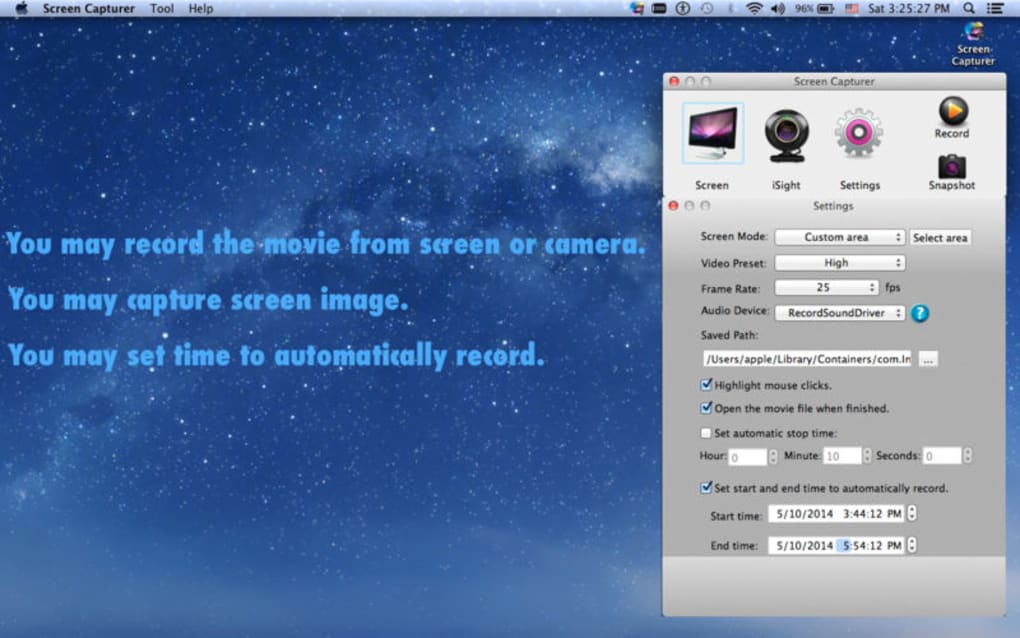
Screen Capturer Lite is a lightweight, free utility that brings both static screenshot capture and dynamic video recording into a single, easy‑to‑use interface. Designed for Windows users who need a quick, reliable way to document on‑screen activity, the application lets you snap full‑screen images, select custom regions with a drag‑and‑drop rectangle, or record video of any portion of your desktop. Audio support is built in, allowing you to capture system sound, microphone input, or both simultaneously—ideal for creating tutorials, bug reports, or gaming highlights.
The tool also offers automatic start/stop timers, multiple video quality presets, and customizable keyboard shortcuts, ensuring that you can start recording without breaking your workflow. External devices such as webcams and capture cards are recognized, expanding the possibilities for multi‑camera recordings or live‑stream previews. While the interface remains minimalistic, the underlying feature set rivals many paid alternatives, making Screen Capturer Lite a solid choice for students, educators, and professionals alike who need a free, secure, and regularly updated screen‑capture solution.
Key Features & Benefits
- Instant full‑screen, window, or custom‑area screenshot capture.
- High‑definition video recording with selectable resolutions up to 1080p.
- Dual audio sources: record system audio, microphone, or both at once.
- Automatic start/stop timers for hands‑free recording sessions.
- Custom keyboard shortcuts for one‑click capture or record actions.
- Support for external cameras, capture cards, and other video devices.
- Multiple video quality presets (low, medium, high) to balance file size and clarity.
- Simple drag‑to‑select interface with real‑time preview of capture area.
- Built‑in file manager that organizes screenshots and video clips by date.
- Free, ad‑free experience with regular security updates.
Each of these features is crafted with usability in mind. For instance, the drag‑to‑select rectangle automatically snaps to window edges, reducing the need for pixel‑perfect adjustments. The timer function is especially handy when you need to record a presentation that begins after a short delay, eliminating the risk of missing the first few seconds.
Keyboard shortcuts can be personalized for “capture screenshot,” “start recording,” and “stop recording,” letting power users keep their hands on the keyboard and away from the mouse. Moreover, the ability to capture audio from both the system and a microphone opens the door to professional‑grade tutorials where you narrate while demonstrating software steps. All these capabilities are delivered without any hidden fees or intrusive ads, reinforcing the tool’s reputation as a trustworthy, free alternative to premium screen‑capture suites.
Installation, Usage & Compatibility
Step‑by‑Step Installation
Installing Screen Capturer Lite is straightforward. Begin by downloading the installer from the official website—look for the “Download for Windows” button, which provides a small (<10 MB) .exe file. After the download completes, double‑click the installer and follow the on‑screen prompts: accept the license agreement, choose an installation folder (the default location works for most users), and click “Install.” The process typically finishes within a minute. Once installed, the application adds a lightweight icon to the system tray, allowing you to launch the main window or access quick actions without cluttering your desktop.
Getting Started with Screenshots
To capture a screenshot, click the tray icon and select “Capture Screenshot,” or press the default shortcut Ctrl + Shift + S. The screen will dim slightly, and a crosshair cursor appears. Click and drag to define a custom region, or press Enter to capture the entire screen. The captured image is automatically saved to the default “Screenshots” folder, which you can open directly from the “Open Folder” button. If you need to annotate, right‑click the file and choose “Edit with Paint” or any external editor of your choice.
Recording Video with Audio
For video recording, select “Start Recording” from the tray menu or use the shortcut Ctrl + Shift + R. A small control panel appears, offering options to choose the capture area (full screen, active window, or custom region) and audio source (system, microphone, or both). Before you begin, you can set the desired video quality—low (480p), medium (720p), or high (1080p).
If you need the recording to begin after a delay, enable the “Start after” timer and specify the number of seconds. Press “Record” to start; the same panel lets you pause or stop the session. Recorded clips are saved in the “Videos” folder in .mp4 format, ready for sharing or further editing.
System Requirements & Supported Platforms
Screen Capturer Lite runs on Windows 7, 8, 8.1, and 10 (both 32‑bit and 64‑bit). The application requires a minimum of 2 GB RAM and 100 MB of free disk space for installation. A graphics card that supports DirectX 9.0c or later is recommended for smooth video encoding. While the primary focus is Windows, the underlying engine is compatible with most modern Windows environments, ensuring that the tool works on both legacy machines and newer hardware without performance penalties.
Pros & Cons
Pros
- Completely free with no hidden charges or advertisements.
- Lightweight installer and low system footprint.
- Rich feature set that includes both screenshots and video recording.
- Supports simultaneous system and microphone audio capture.
- Customizable shortcuts and timer options boost productivity.
- Regular security updates keep the software safe and reliable.
Cons
- Currently limited to Windows; no native macOS, Android, or iOS version.
- No built‑in editing or annotation tools; external editors are required.
- Advanced video codecs (e.g., H.265) are not supported in the free version.
- Export options are limited to PNG for screenshots and MP4 for videos.
Frequently Asked Questions
Is Screen Capturer Lite really free?
Yes, Screen Capturer Lite is completely free to download and use. There are no hidden fees, subscription plans, or ads that interrupt the capture process.Can I capture my webcam while recording the screen?
Absolutely. The application detects external cameras and allows you to overlay webcam footage onto the screen recording, making it perfect for tutorials or live‑stream prep.What audio sources are supported?
You can capture system audio, microphone input, or both at the same time. The audio source is selectable from the recording toolbar before you start.How do I change the default keyboard shortcuts?
Open the Settings menu from the tray icon, navigate to the “Shortcuts” tab, and assign new key combinations for screenshot, start recording, and stop recording. Click “Apply” to save your changes.Is there a limit to the length of video recordings?
There is no artificial time limit; recordings continue until you manually stop them or the hard drive runs out of space. However, longer recordings will produce larger files, so ensure you have sufficient storage.Conclusion & Call to Action
Screen Capturer Lite delivers a surprisingly powerful set of screen‑capture capabilities while staying completely free and lightweight. Whether you need a quick screenshot for a bug report, a high‑quality video tutorial with voice‑over, or a simple way to record gameplay, this tool covers the essentials without overwhelming you with unnecessary bloat. Its support for audio mixing, webcam overlay, and customizable shortcuts makes it a versatile ally for educators, developers, and content creators alike. While the lack of macOS or mobile versions and limited built‑in editing features may be a drawback for some, the overall value proposition remains compelling for Windows users seeking a secure, regularly updated, and ad‑free solution.
Ready to streamline your documentation workflow? Download Screen Capturer Lite now and start capturing your screen with confidence. Experience a free, secure, and feature‑rich tool that updates regularly to keep your data safe and your workflow smooth.
Overall Rating: 4.5 / 5
Pros: Free, lightweight, dual‑audio capture, customizable shortcuts.
Cons: Windows‑only, no built‑in editor, limited export formats.







